
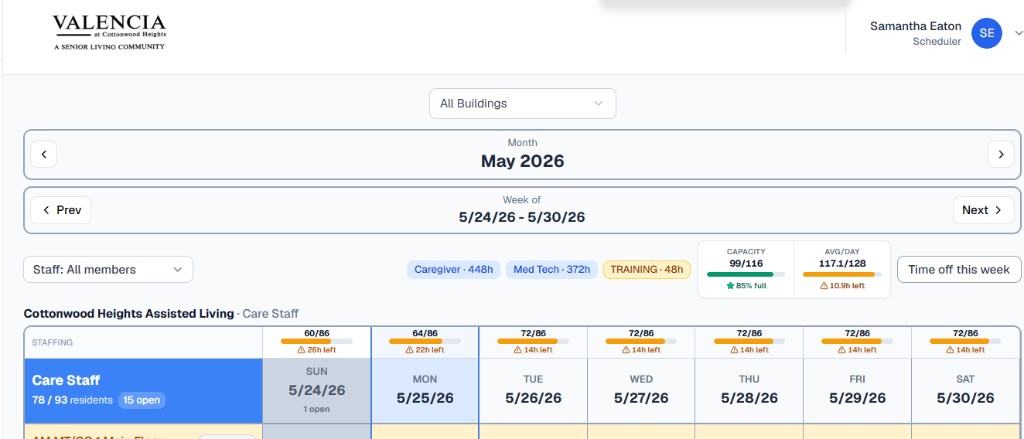
This gives you real-time visibility based on your metrics — not generic benchmarks. Compare staffed hours against daily goals you set for each building, spot gaps early, and prevent accidental over-staffing.
1. Turn performance metrics on or off (facility)
If your community uses resident care hour goals, leave this on. If you do not use this workflow, turn it off so schedulers aren’t distracted by metrics or warnings from unset targets.
Where: Manage → Facility Management → Schedule
Setting: Show resident care hour performance on the schedule
When off, the schedule hides performance bars, daily staffing rows, over-target warnings, and building performance settings. Capacity (census vs licensed beds) can still display when census is entered.
2. Configure each building
Performance targets are set per building in Building Management.
Where: Manage → Building Management → select a building → Edit
Scroll to the Resident Care Hour Performance section.
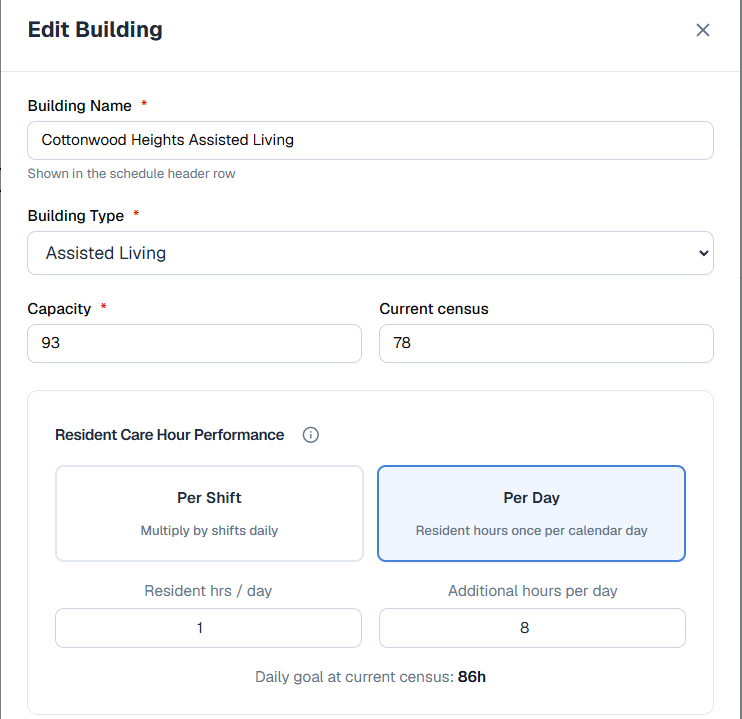
Per day
Set one resident-hours target for the whole calendar day, plus fixed additional hours (e.g. leadership / overlap).
Example: 78 residents × 1 hr + 8 additional hrs = 86h daily goal
Per shift
Multiply resident hours by the number of shifts per day. Use Exclude night shifts when nights are staffed separately.
Example: Per-shift goal × 2 shifts/day yields a higher daily total than Per day mode for the same resident rate.
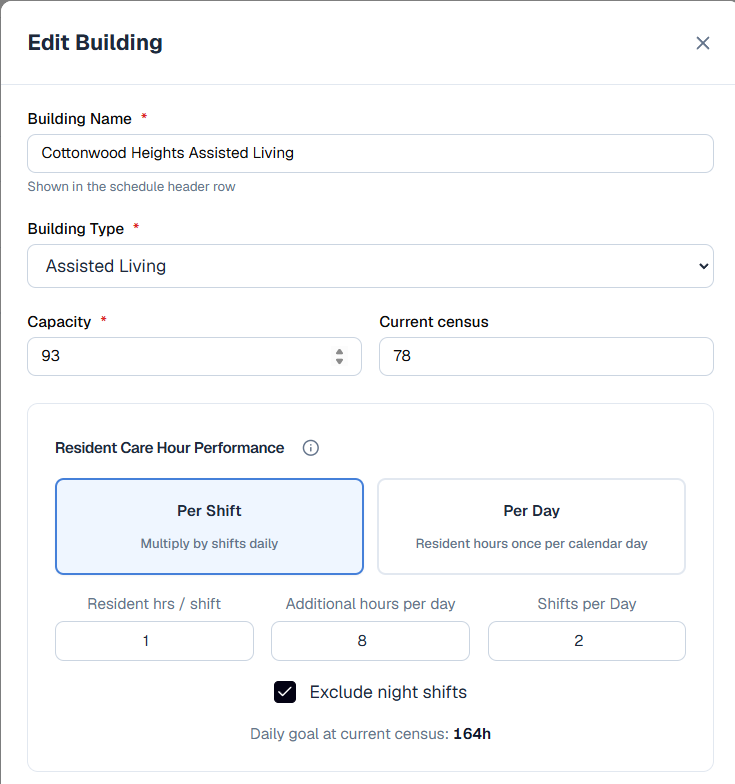
The Daily goal at current census preview updates live as you change settings — use it to confirm before saving.
3. Reading the schedule
When enabled and configured, the weekly schedule shows:
- Capacity — current census vs licensed beds (when census is set).
- Avg/day — average staffed hours for the week vs the daily goal.
- Staffing row — each day shows staffed hours / goal (e.g. 72/86) with a color bar and hours remaining or over.
Under target — hours still available
On target
Over target — e.g. +6h

4. Scheduler warning when over the daily goal
When assigning staff would push a building/day over the daily target, the shift assignment window shows a clear warning. Schedulers must acknowledge the overage before saving.
- Shows exactly how many hours over the goal the day would be.
- Check Assign anyway — over daily target only when intentionally going above the goal.
- Save Changes is blocked until acknowledged.
This is a helpful guardrail — not a hard block. It prevents accidental over-staffing while still giving you flexibility.
Quick setup checklist
☐ Turn Show resident care hour performance on in Facility Management (if you use this workflow).
☐ For each building: set Capacity, update Current census weekly, and configure Resident Care Hour Performance in Building Management.
☐ Confirm the Daily goal at current census preview looks correct before saving.
☐ Train schedulers on the staffing row, color indicators, and the Assign anyway acknowledgment when over target.
Questions or need help tuning goals for your buildings? Email support@shift-elevate.com.
ALIS census integration planned for a future release.